Exporting an Application to Git in Syntasa
Syntasa provides multiple mechanisms to export application definitions to Git repositories. Exporting to Git ensures that your dataflow logic, processor configurations, and application metadata are version-controlled, auditable, and portable across environments such as Development, QA, and Production.
This article explains the available export methods, when to use each approach, and the technical validations involved.
Export Methods in Syntasa
Applications can be exported to Git from three primary contexts:
-
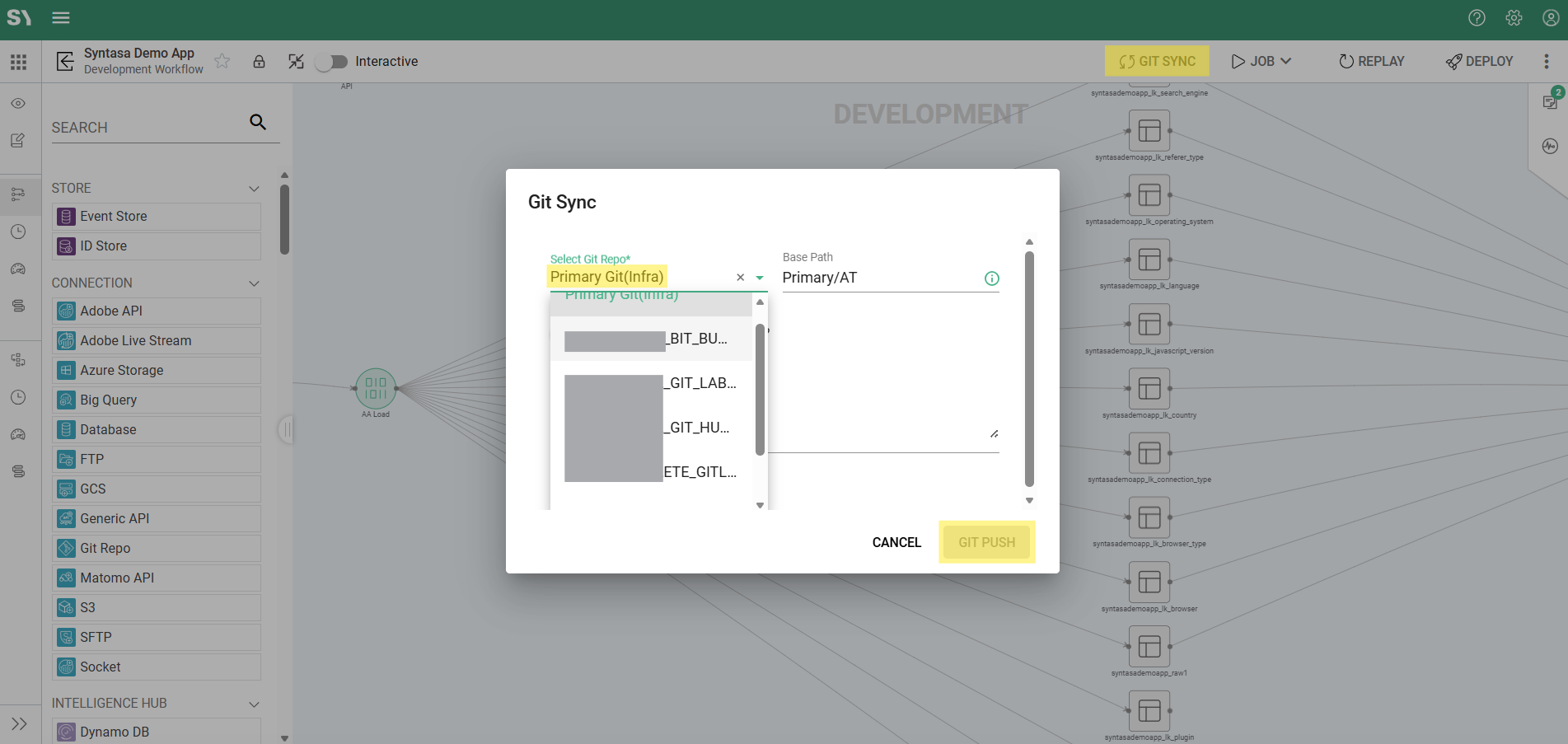
Git Sync – Directly synchronizes the current state of the workflow.
-
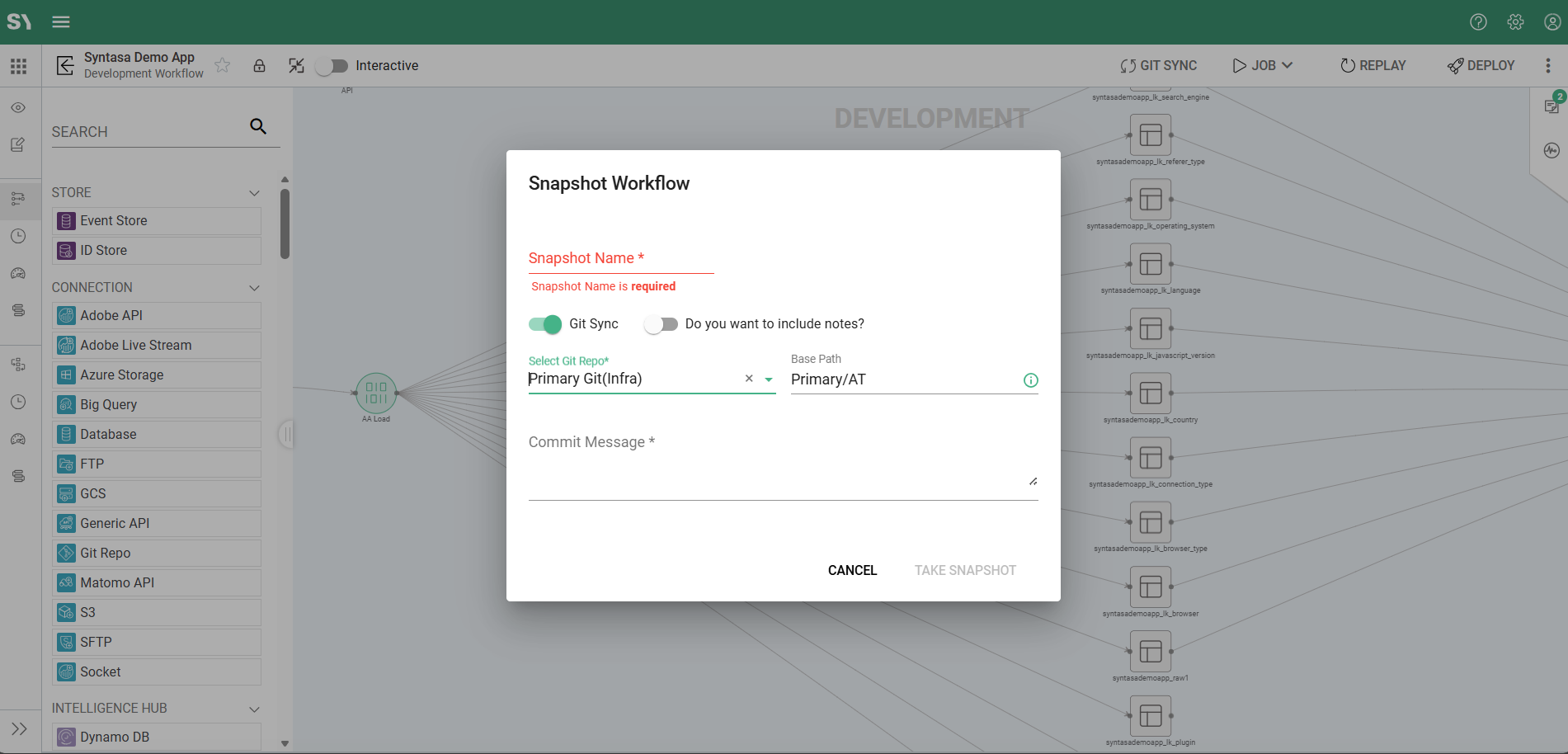
Snapshots – Captures a point-in-time version of the application.
-
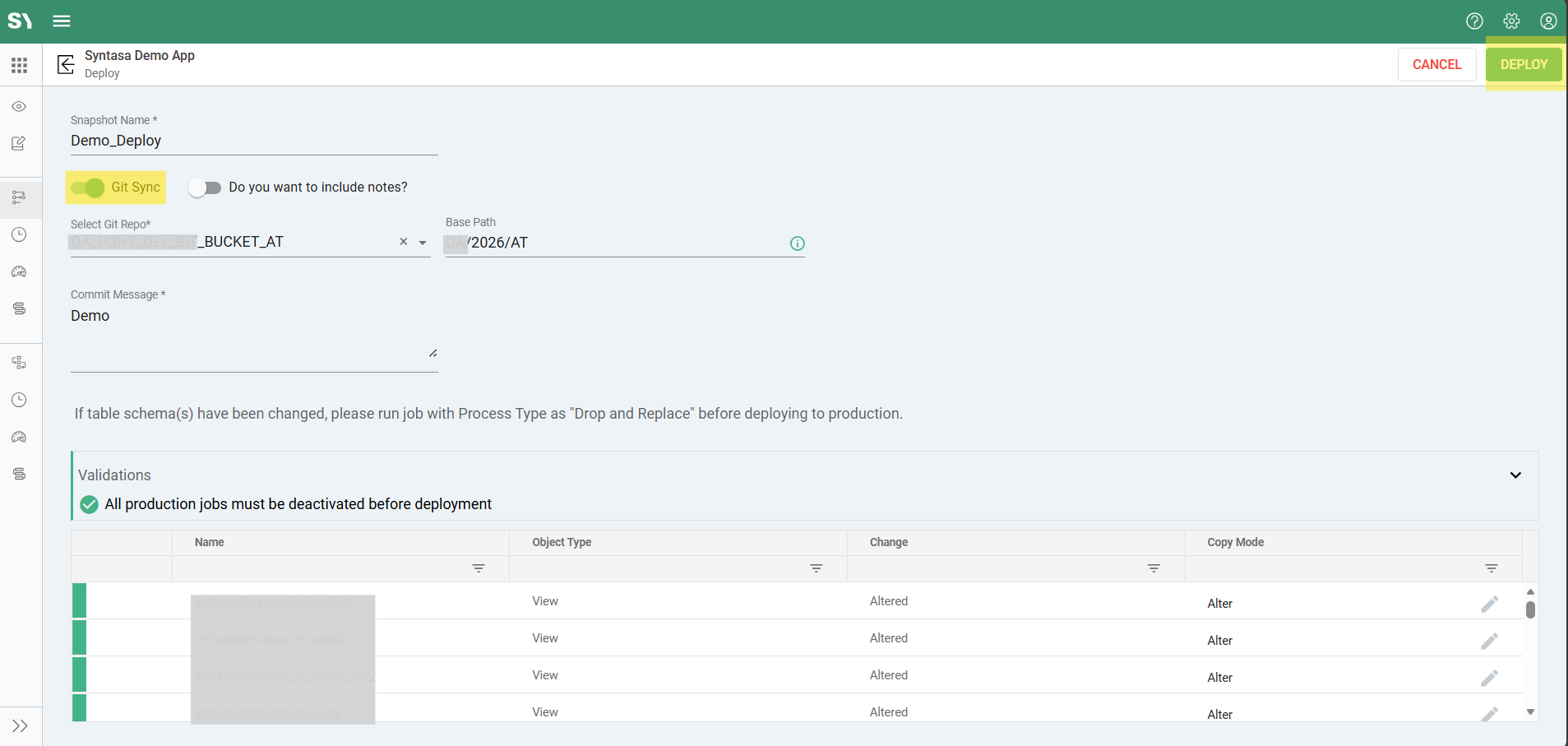
Deployment – Automatically versions the application during environment promotion.
Each method supports different stages of the application lifecycle.
Exporting via Git Sync
Git Sync is the most direct method for exporting the current application configuration to a Git repository.
Steps to Perform Git Sync
-
Open the Workflow Canvas of the application you want to export.
-
From the top toolbar, click Git Sync.
-
In the Git Sync dialog, configure the following options:
-
Commit Message
Provide a clear and descriptive summary of the changes
(Example: “Updated Spark logic for churn model”) -
Include Notes
Enable this option to include documentation notes associated with graph nodes. -
Repository Selection
- Primary Git (Infra): Uses the default repository configured by the platform administrator.
- External Git (Connection): Select a specific Git Repository Connection to push changes to an alternate repository.
-
Base Path (Optional)
Specify a subdirectory within the repository where the application definition should be stored.
-
-
Click GIT PUSH.
Once completed, Syntasa generates the application JSON and pushes it to the selected repository and branch.
Exporting via Snapshots
Snapshots allow you to capture the state of an application at a specific point in time. These snapshots can be stored within Syntasa or exported to Git for long-term versioning.
Steps to Export a Snapshot to Git
-
On the Workflow Canvas, click the Snapshot icon.
-
Select Take Snapshot.
-
In the configuration panel:
- Enter a Name and Description.
- Enable the Push to Git option.
- Select the target Git Connection and confirm the Branch.
-
Click TAKE SNAPSHOT.
The snapshot metadata and application definition are committed to the selected Git repository.
Exporting During Deployment
During application deployment (for example, from Development to Production), Syntasa can automatically export the finalized application definition to Git. This establishes a production source of truth.
Deployment Export Workflow
-
Initiate the Deploy action from the application screen or workflow canvas.
-
Syntasa calculates a Production Diff, identifying:
- Newly added nodes
- Modified nodes
- Deleted nodes
-
If Git integration is enabled for the target environment:
- You will be prompted to confirm Git commit details.
-
Upon successful deployment:
- The production-ready application definition is committed to the designated production branch.
Primary Git vs. Git Repo Connection
| Feature | Primary Git (Infra) | Git Repo Connection |
|---|---|---|
| Configuration | Defined at the infrastructure level by administrators | Defined as a reusable resource by users or admins |
| Use Case | Default backup and synchronization for all applications | Project-specific repositories or external collaboration |
| Flexibility | One repository per environment | Supports GitHub, GitLab, and Bitbucket repositories |
Technical Details and Validations
Export Format
Applications are exported as a comprehensive JSON definition, including:
- Workflow canvas (DAG) layout
- Processor configurations and parameters
- Mapping and transformation rules
- Environment-specific metadata
Validation Rules
-
Unsaved Changes
The workflow canvas must be saved before initiating Git Sync. -
Node Configuration State
Only nodes in Configured or Not Configurable states are exported.
Nodes in an Invalid state may block the export. -
Permissions
- Write access to the Git Repository Connection
- Edit permissions on the Syntasa application
GitSync Job Monitoring
Each export action creates a system job of type GITSYNC.
You can monitor the status and logs of this job from the Run Activity tab.
Troubleshooting
Sync Button Disabled
- Ensure there are no unsaved changes on the workflow canvas.
- Verify that a valid Git connection is configured and accessible.
Authentication Errors
-
Confirm that the Personal Access Token (PAT) or SSH key used by the Git connection:
- Is not expired
- Has Write permissions on the target repository
Conflict Warnings
-
If a newer version of the application exists in Git:
- Syntasa will prompt you to resolve the conflict before overwriting the repository content.
Best Practices
- Use Git Sync for frequent incremental updates.
- Use Snapshots to capture stable milestones or pre-release states.
- Always enable Git export during Production Deployments to maintain an authoritative version history.